Monday, 19 October 2020

Walking random blocks


Walking Random blocks

In order to get the below code you will need to follow these blogs in order to get started:

Setting up the server link

My first code link

In this code you will use the following skills:

+Import code from libraries

+Create a connection to the Minecraft server(local on this pc only)

+Store 16 block ID's in a list

+ Create two procedures 1) drop a random wool block 2)drop a glass block

+Use a basic while loop (iteration)

+Call a named procedure, select a random number from a list and then drop that colour block

+Wait for 0.1 seconds

 Coding key skills 

Selection

Iteration

Sequence

Data Structures(Lists)

Variables

Data Structures(2D arrays)

Input

Output

Logical Operators

Mathematical operators

String manipulation

Functions

Procedures

File handling


Instructions:

 Follow the steps below and you will get there pretty quickly:


1.Open Idle

2.Click on “File” > “New File”

3.Type out the following code


4.In the Adventures with Minecraft folder click on “Start Server”


5.At this point press enter and the following should happen….


7. Next press enter...then this should happen.....


 9. Next on Minecraft select “Multiplayer”.


9.Then type in "local host"


10.Type in local host and hit the “join server” button.


11. Press “Esc” on the keyboard to allow yourself to quickly pop back to IDLE so you can save and run your code.

12. In IDLE “File” >> “Save As” >> Call it “Drop blocks.py”


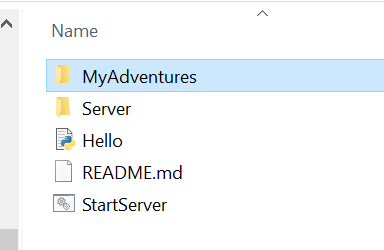
13. For it to work you will need to save it in a specific folder which is:

“AIMStarterKitPC\AdventuresInMinecraft-PC\MyAdventures”

Like I have here:


14. Still in IDLE select “Run” >> “Run Module”

15. Head back to Minecraft and you should see your code in action:


16. To kill the code / stop I from working you will need to press “Esc” >>> find this window in IDLE then close it down. See below:


If you like this blog check out all the others here

Sunday, 11 October 2020

Whack a block


Coding skills covered

Selection

Iteration

Sequence

Data Structures(Lists)

Variables

Data Structures(2D arrays)

Input

Output

Logical Operators

Mathematical operators

String manipulation

Functions

Procedures

File handling


Whack a block

To keep this one simple we will stick to the old trusty “Hello world”. Follow the steps below and you will get there pretty quickly:


1.Open Idle

2.Click on “File” > “New File”

3.Type out the following code


4.In the Adventures with Minecraft folder click on “Start Server”


5. Press enter.


6. At this point press enter and the following should happen….


8. Next on Minecraft select “Multiplayer”.


9. Next press direct connect..


10.Type in local host and hit the “join server” button.


11. Press “Esc” on the keyboard to allow yourself to quickly pop back to IDLE so you can save and run your code.


12. In IDLE “File” >> “Save As” >> Call it “Whack a block.py”


13. For it to work you will need to save it in a specific folder which is:

“AIMStarterKitPC\AdventuresInMinecraft-PC\MyAdventures”

Like I have here:


14. Still in IDLE select “Run” >> “Run Module”

15. Head back to Minecraft and you should see your code in action:


16. To kill the code / stop I from working you will need to press “Esc” >>> find this window in IDLE then close it down. See below:


Next up try Walking random blocks link


If you like this blog check out all the others here


Minecraft Pi / Java edition experiments with code


Python coding on Minecraft Java Edition and Raspberry Pi:

1. Getting started with Minecraft Java edition coding. link

2. Get started with Minecraft Pi on Raspberry pi link 


2. My first code .... link

Selection

Iteration

Sequence

Data Structures(Lists)

Variables

Data Structures(2D arrays)

Input

Output

Logical Operators

Mathematical operators

String manipulation

Functions

Procedures

File handling


3.Whack a block link

Selection

Iteration

Sequence

Data Structures(Lists)

Variables

Data Structures(2D arrays)

Input

Output

Logical Operators

Mathematical operators

String manipulation

Functions

Procedures

File handling


4. Walking Random blocks link

Selection

Iteration

Sequence

Data Structures(Lists)

Variables

Data Structures(2D arrays)

Input

Output

Logical Operators

Mathematical operators

String manipulation

Functions

Procedures

5.Forcefield link

Selection

Iteration

Sequence

Data Structures(Lists)

Variables

Data Structures(2D arrays)

Input

Output

Logical Operators

Mathematical operators

String manipulation

Functions

Procedures

File handling


6. Rainbow Road link

Coding key skills

Selection

Iteration

Sequence

Data Structures(Lists)

Variables

Data Structures(2D arrays)

Input

Output

Logical Operators

Mathematical operators

String manipulation

Functions

Procedures

File handling


If you like this blog check out all the others here

My first program


  I don't have capacity to show how to install python on a PC as I don't have admin rights to my laptop for work. However this video is recent and very thorough and shows all steps needed to install Python and how to get started with IDLE.(Please watch this video then follow the steps below.

Now you have followed the steps in the video linked above you should have installed Python and have IDLE installed(where you will edit the code). 

To proceed further, I am assuming you have worked through the YouTube link and installed Python whatever the latest version is. With that comes an IDE(software to create and edit the code FYI). Next step is to create the code that will somehow influence you’re in game experience.


To keep this one simple we will stick to the old trusty “Hello world”. Follow the steps below and you will get there pretty quickly:


1.Open Idle

2.Click on “File” > “New File”

3.Type out the following code:


4.In the Adventures with Minecraft folder click on “Start Server”


5.Press enter.


7. At this point the following should happen….


8. Next on Minecraft select “Multiplayer”.


9. Next press direct connect..


10.Type in local host and hit the “join server” button.


11. Press “Esc” on the keyboard to allow yourself to quickly pop back to IDLE so you can save and run your code.


12. In IDLE “File” >> “Save As” >> Call it “Hello world.py”


13. For it to work you will need to save it in a specific folder which is:

“AIMStarterKitPC\AdventuresInMinecraft-PC\MyAdventures”

Like I have here:


14. Still in IDLE select “Run” >> “Run Module”


15. Head back to Minecraft and you should see your code in action:


16. To kill the code / stop I from working you will need to press “Esc” >>> find this window in IDLE then close it down. See below:


Now you can start to do some interesting code....

Next try "Whack a block" link

Over


If you like this blog check out all the others here